Step by Step instructions about how to process new candidates is included in the online CLMS2Web documentation.
How Do I Process Membership Candidates?
Based on the current status of their application, candidate records are stored in one of several "folders" that can be accessed through the "Roster" tab of the main menu, or from the Control Panel. Click the link labeled "Process Candidates" to access these folders:
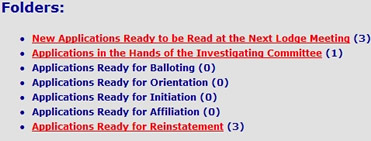
As a candidate completes each step of membership process (application, investigation, balloting, etc.) they move into the next applicable folder. Let's get started:
- Click the link labeled "New Applications Ready to be Read at the Next Lodge Meeting."
- Click the "Propose" button next to the name of the candidate you'd like to process.
- Type the date the candidate was proposed, and the name of the proposer. Click the "Submit" button and the candidate will be transferred automatically to the next applicable folder. After this you can either continue processing new applications (if any), or click the link labeled "Investigating Committee" to move on to the next folder.
- In the "Applications in the Hands of the Investigating Committee" folder you'll see a list of all the candidates currently being investigated. These can be processed together by typing the investigation date, and then clicking the checkbox next to the name of all the candidates who were investigated on that date. Click the "Process Candidates" button to advance these candidates automatically into the next folder.
- In the "Applications Ready for Balloting" folder you'll see a list of all candidates awaiting election. These can be processed together by typing the election date, and then clicking the checkbox next to the name of all the candidates who were elected on that date. Click the "Process Candidates" button to advance these candidates automatically into the next folder.
- In the "Applications Ready for Orientation" folder you'll see a list of all candidates awaiting orientation. These can be processed together by typing the orientation date, and then clicking the checkbox next to the name of all the candidates who were given orientation on that date. Click the "Process Candidates" button to advance these candidates automatically into the next folder.
- In the "Applications Ready for Initiation" folder you'll see a list of all candidates awaiting initiation. Click the "Initiate" button next to the name of the candidate you'd like to initiate.
- Type the initiation date, and make sure the system has provided an appropriate membership number for the new member. (In CLMS2, candidates are automatically assigned the next available membership number. You can override this number if necessary.) Click the "Submit" button to complete the initiation.
- Once an initiation date has been submitted, you'll be prompted to submit the new member's initial, pro-rated membership dues. The system will calculate the amount due automatically based on the initiation date you've submitted. If necessary, you can override this value. Click the "Submit Payment" button to complete the transaction.
- In the "Applications Ready for Affiliation" folder you'll see a list of all candidates awaiting affiliation. (Note that all candidates will ultimately wind up in either the initiation, affiliation, or reinstatement folder based on the "type" value associated with their application date. This value is populated automatically when the application date is created.) Click the "Affiliate" button next to the name of the candidate you'd like to affiliate.
- Type the affiliation date, as well as a "lost years" value if there's been a gap in membership. Click the "Submit" button to complete the affiliation.
- Once the affiliation date has been submitted, you'll be prompted to submit the member's pro-rated membership dues. The system will calculate the amount due automatically based on the affiliation date you've submitted. If necessary, you can override this value. Click the "Submit Payment" button to complete the transaction.
- In the "Applications Ready for Reinstatement" folder you'll see a list of all candidates awaiting reinstatement. Click the "Reinstate" button next to the name of the candidate you'd like to reinstate.
- Type the reinstatement date, as well as a "lost years" value if there's been a gap in membership. Click the "Submit" button to complete the reinstatement.
- Once the reinstatement date has been submitted, you'll be prompted to submit the member's pro-rated membership dues. The system will calculate the amount due automatically based on the reinstatement date you've submitted. If necessary, you can override this value. Click the "Submit Payment" button to complete the transaction.
Comments